
Hello, everyone.
This is Enta.
Hey, everyone!
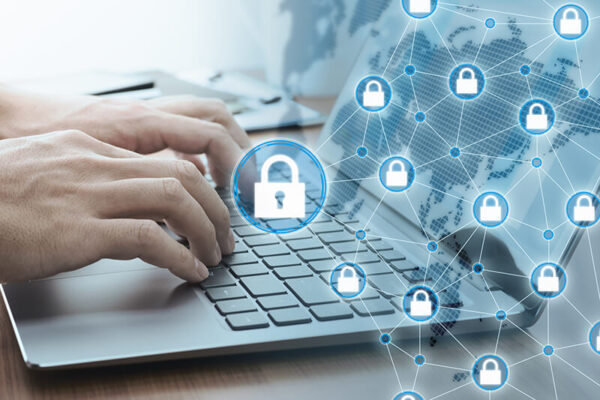
Are you taking online security seriously?
There has been a spate of securities firm takeovers that have been making headlines recently.
Are you taking any measures to prevent that from happening?
I haven't done anything!!!!
If that's you, you're seriously in trouble.
For starters, I imagine there are plenty of things like social media, cloud storage, brokerage accounts, online banking, and so on, but,
First, what does security involve?
🔰 Beginner Level (Things You Can Do Right Now · Super Easy)
-
Use strong passwords (and don't reuse them)
-
Example: 12 or more characters consisting of alphanumeric characters and symbols
-
"123456," "password," and similar passwords are absolutely off-limits.
-
-
Use a password manager
-
Examples: 1Password, Bitwarden, Google Password Manager, etc.
-
-
Enable Two-Factor Authentication (2FA)
-
Set it up for everything—Google Account, LINE, Amazon, social media, and more!
-
-
Update Windows, Mac, and smartphones to the latest version
-
OS and app updates are the best line of defense
-
-
Do not open suspicious links or emails
-
Be especially cautious of "suspicious attachments" and "text messages posing as delivery companies," among other things.
-
🧰 Intermediate Level (Once You've Got the Hang of It)
-
Set a Strong Wi-Fi Password
-
Don't leave the default password as is
-
Use WPA3 or WPA2-AES
-
-
Turn on login notifications
-
Receive email notifications when a new device accesses your account
-
-
Choosing a Browser Based on Security
-
I recommend Brave, Firefox, Edge (with Security Mode enabled), and others (I'm a Brave fan)
-
-
Use a VPN on Free Wi-Fi
-
Public Wi-Fi is vulnerable to eavesdropping, so use a VPN (such as NordVPN or ProtonVPN) (this can be a bit challenging)
-
🛡 Advanced Level (For Those Who Are Serious About Protection)
-
Use a Security Key (Physical Authentication)
-
Examples: YubiKey, Google Titan Security Key (YubiKey requires physically plugging in a USB device for authentication, etc.)
-
With Google and Apple, you can fully secure your login with this key
-
-
Check for data breaches involving your personal information on a regular basis
- Examples of Services:Have I Been Pwned(Check if Your Email Address Has Been Compromised: A Website That Lets You Check for Data Breaches)
Oh no—I've been pwned! I was pwned in 5 data breaches and found no pastes
If the result looks like the one above,Oh no, there's been a data breach! Your information has been compromised in five separate data breaches.I couldn't find it on any paste sites (such as Pastebin). That's what it means. (My email address was leaked, lol. I changed my password!)
-
Delete Unnecessary Apps and Accounts
-
Unused accounts are a source of risk, so clean them up
-
-
Implement firewalls and antivirus software
-
Windows Defender is fine, too. If you're concerned, you can use ESET, Kaspersky, etc. (These are suitable even for beginners, though the settings can be a hassle in some cases.)
-
| Level | Contents | Difficulty Level |
|---|---|---|
| Beginner | Password, 2FA, Update | ★ |
| Intermediate | Wi-Fi, VPN, and Notification Management | ★★ |
| Advanced | Security Keys and Periodic Audits | ★★★ |
Anyway, let's give it a try—even if we start at the beginner level!
That alone provides quite a bit of defense!
Please do this before you lose something important.
Even if you go to the police, they won't do anything at all. (They'll just accept your report.)
Let's take responsibility for our own safety!
See you later.