


Hello, everyone.
This is Enta.
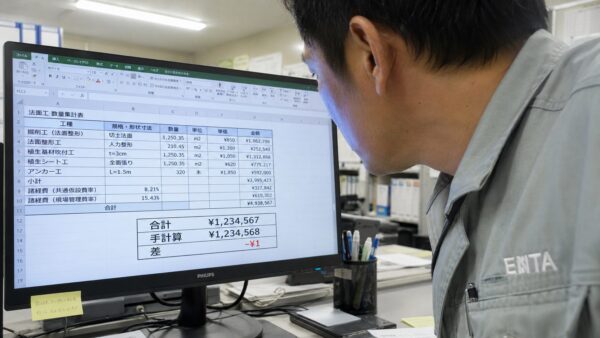
Have you ever set up a quantity tally in Excel only to find that “when you add everything up, it’s off by 1 yen from your manual calculation”?
Even when calculating the cost of slope construction, if you keep applying formulas like "area × unit price × consumption tax,"There is always a difference of 1 yen or 1 m² in the last line.It's a phenomenon.
This isn't an Excel bug, but...IEEE 754: The Global Standard for Floating-Point NumbersThat's why lol
I got really pissed off about this a while back and looked it up, so I thought I'd share it with you all lol
That said, don't people use Excel much for calculations these days?
I'm still an Excel fan!
This one can do just about anything, so... lol
But that's beside the point.
This time,The True Nature of Accumulated Rounding Errors in Excel (and Many Other Software Programs),IEEE 754 Double-Precision Floating-Point SpecificationsSo,
The Correct Workaround Using the ROUND FunctionI'll explain my experience of struggling with quantity calculations.
Since this is clearly stated in Microsoft's official documentation, the source is 100%—no doubt about it.
The Truth Behind Excel's Quirks | IEEE 754 Specification
To put it simply,Calculation errors in Excel are not bugs, but rather the result of strictly adhering to the IEEE 754 standard for floating-point arithmetic.That's it.
It’s like, “Huh?” isn’t it?
Microsoft states the following regarding Excel's calculation accuracy: Microsoft Excel is designed based on the IEEE 754 standard, which defines how floating-point numbers are stored and calculated. Excel can store numbers ranging from 1.79769313486232E308 to 2.2250738585072E-308, butThe number of significant digits must be 15 or fewer....is limited to.
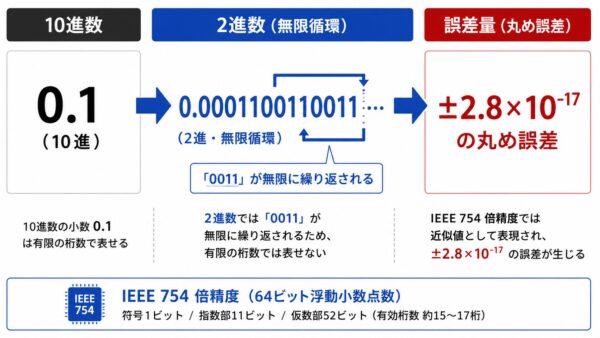
In other words, Excel internally...All numbers are handled in binary.Therefore, when converting a number written in decimal to binary,Rounding error...is born.
The essence of this phenomenon is that these effects accumulate as calculations are performed repeatedly.
Why Does Error Occur When Converting from Decimal to Binary?
A finite decimal number such as "0.1,"In binary, it becomes a repeating decimal that goes on indefinitely.That is the cause.
| Decimal | Binary Representation | Notes |
|---|---|---|
| 0.5 | 0.1 | Can express it perfectly |
| 0.25 | 0.01 | Can express it perfectly |
| 0.1 | 0.0001100110011… (repeating) | Infinite loop, rounding error occurs |
| 0.2 | 0.0011001100110… (repeating) | Ibid. |
| 0.3 | 0.0100110011001… (repeating) | Ibid. |
In IEEE 754 double precision (64-bit), this infinite loopStore after truncating to a certain number of digitsAs a result, a slight error (approximately ±2.8 × 10⁻¹⁷) occurs (Microsoft Learn).
Specific Examples | Common Discrepancies in Excel
Prerequisite Knowledge | The Meanings of TRUE and FALSE
Before we get into specific examples, in Excel... TRUE / FALSE Let's review that.
It’s a bit late to be saying this, but since this is the absolute basics for everyone, you should definitely make sure to remember it!
In Excel "=" and ">" and "<" When you use it, the result is TRUE (True, Equal, Valid) か FALSE (false, not equal, or not true) ...and it comes back.
| Mathematical Formula | Meaning | Results |
|---|---|---|
=1=1 |
Is 1 equal to 1? | TRUE |
=1=2 |
Are 1 and 2 equal? | FALSE |
=5 > 3 |
Is 5 greater than 3? | TRUE |
In other words 「=A1=0.3 "Returns FALSE" = "The value in A1 is not equal to 0.3" That is what it means. Please keep this in mind as you look at the examples below.
*For formatting purposes, the equations are written using the full-width equals sign (=). When entering them into Excel, please replace it with the half-width "=" sign.
Example 1 | The Mystery of Why 0.1 + 0.2 ≠ 0.3
Please try entering the following into an Excel cell:
| Cell | Mathematical Formula | Display Results | Internal value |
|---|---|---|---|
| A1 | = 0.1 + 0.2 |
0.3 | 0.30000000000000004… |
| A2 | =A1=0.3 |
FALSE | (Strictly speaking, they are not equal.) |
Even though the display shows the correct value of “0.3,”=A1=0.3 When comparing them, becomes FALSE. That's just how IEEE 754 works, lol.
It's so annoying, isn't it? lol
Example 2 | Adding 100 Causes the Number to Deviate from an Integer
=SUM(A1:A100) When you sum multiple cells as shown, the minor errors in each cell willStacks up to 100 pieces:
- Add 0.1 × 100 one by one → Result: 9.99999999999998…
- Expected value of 10 may not match exactly
When calculating quantities for civil engineering projects, 100-row summary of "Area × Unit Price" If you do that, on the last line... A discrepancy of a few to several dozen yen That's why it happens.
![[Example of How Fractional Values Accumulate and Cause Deviations from Whole Numbers in an Excel SUM Calculation Over 100 Cells | A Common Error in Quantity Totals]](https://norimen.net/wordpress/wp-content/uploads/2026/06/cb7803b0943e6f4fc8097624033210ff.jpg)
Example 3 | Accumulation of Fractional Values in Slope Area Calculations (A Common Occurrence on Slope Construction Sites)
Specific scenarios that commonly arise when calculating the area for slope construction:
- Framework Engineer:Use the square root function in Excel to calculate areas and then add them together
- In the final SUM row, the manual calculation and A discrepancy of 0.1 to 0.5 m²
This is the kind of situation where you end up wasting half a day without knowing why.
I remember using this to do calculations over and over again back in the day! lol
Workaround | Round Each Time Using the ROUND Function
Simply selecting "Reduce the number of decimal places" in the display format is not enough
To reduce the number of decimal places using Excel's "Format Cells" feature,
The values are rounded only for display purposes; the underlying values still contain errors.。
If this is carried over to the next calculation, the error will remain, so this does not provide a fundamental solution.
The real solution is to round the value itself within the function.That.
When to Use the ROUND Function
| Function | Operation | Uses |
|---|---|---|
=ROUND(value, num_digits) |
Rounding | General Purpose / Amount Calculation |
=ROUNDDOWN(value, num_digits) |
Truncation | Cost Estimation That Errs on the Side of Caution |
=ROUNDUP(value, num_digits) |
Rounding up | Quantity of Materials to Order (to Avoid Shortages) |
=INT(value) |
Integerization (negative numbers are floor functions) | If you want to cap the value at an integer |
=FLOOR(value, unit) |
Round down to the specified unit | Rounding to the nearest 10 yen or 100 yen |
=CEILING(value, unit) |
Round up to the specified unit | Same as above, to prevent shortages |
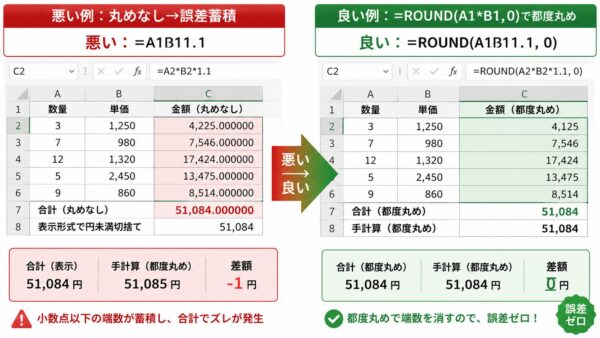
Always do it this way when preparing cost estimates and preliminary calculations!
Here’s the process I follow for construction cost estimates and preliminary calculations:
- Amount calculations are always
=ROUND(Quantity * Unit Price * 1.10, 0)and round to the nearest yen each time - Quantity Calculations (Area and Volume) are
=ROUND(value, 2)...rounded to two decimal places Roll it up and secure it - Do not recalculate in the last row of the summary(Simple sum of values rounded off along the way)
With this, you can create a statement of account that matches your manual calculations down to the last yen.
You can also use the "Excel Calculation Precision Options" at the same time
In Excel, there is The "Calculate Based on Number of Displayed Digits" optionYou can also find it here (File → Options → Advanced → When calculating this workbook).
If you turn this ON,Calculate by rounding the internal values according to the cell's display formatThey'll do it for you. However,
- Applies to the entire book (cannot be applied selectively)
- There is a possibility that existing calculation results could change drastically.
- It's safer not to use it in cost estimates shared within the team.
To be honest, in reality, I don't use this option, and instead,It's safer to control them individually using the ROUND functionI'd recommend this to people like that.
The Same Applies Outside of Excel | The Limitations of IEEE 754 Compliance
The floating-point error in IEEE 754 is,This is not a problem specific to Excel; it occurs in all major spreadsheet programs, such as Google Sheets, Numbers, and OpenOffice.I will.
Furthermore, the same specification applies to most programming languages, such as C, Python, JavaScript, and SQL.
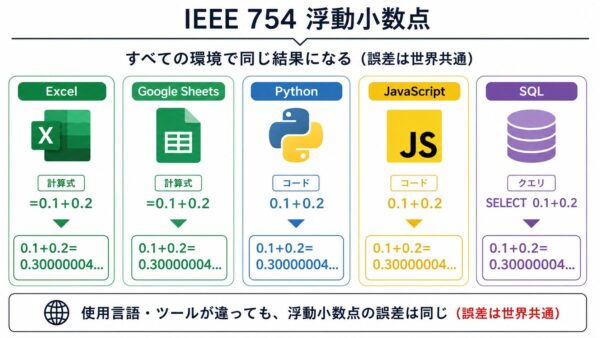
In other words,Not "It's inaccurate because it's Excel," but a globally standardized specification. As a civil engineer, you should understand this and use the ROUND function—that’s the correct approach.
5 Key Points to Keep in Mind
When using Excel for area calculations, quantity calculations, and similar tasks, keep the following five points in mind.
- ✅ Amount calculations are always
=ROUND(…,0)Round to the nearest yen - ✅ Quantity calculations are
=ROUND(…,2)and set to two decimal places - ✅ Rounding in the display format does not change the underlying value.Being mindful of...
- ✅
=A1=0.3Avoid direct comparisons such as(The Pitfall of a "FALSE" Result) - ✅ Do not use the "Accuracy Option" in cost estimates used by the team
If you're unsure, first consider whether to insert a single layer of the ROUND function.
Simply inserting one ROUND eliminates 99% of the deviation caused by IEEE 754.
It's not that Excel has "quirks," but rather,Quirks of Floating-Point Arithmetic Around the WorldWe need to understand and master it.
See you later.